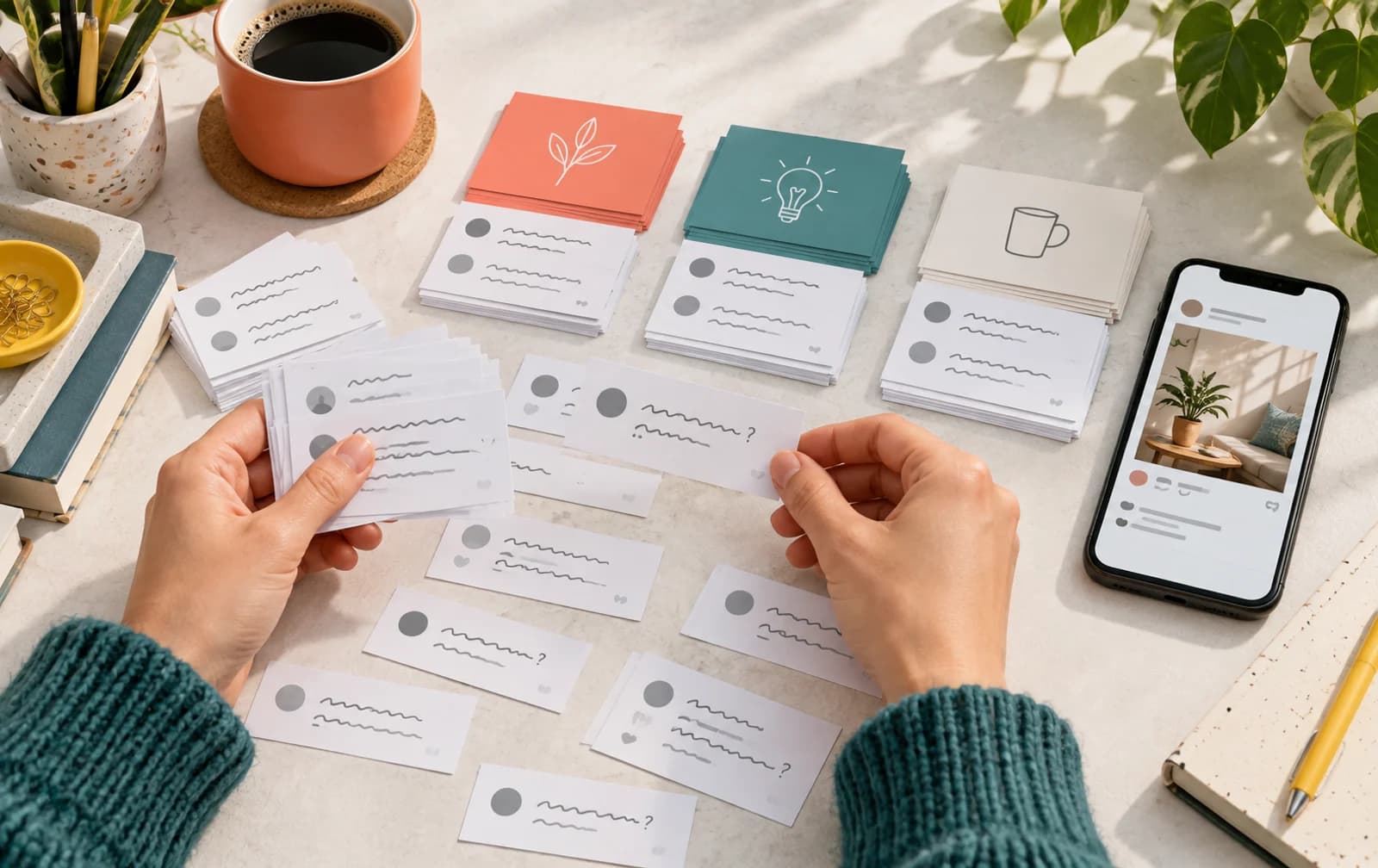
How to repost on Instagram depends on the action you mean. Putting an original post forward through the native feature is different from sending it to someone or uploading a separate file. Decide which job you want the content to do before choosing the button or preparing another version.
Short answer: Open the original public post or Reel and use the native repost option when it is available. If you want to send the content to a person instead, use sharing. Treat a separate upload as new publishing that needs appropriate permission.
Native reposting keeps the original at the center
Meta's official introduction to Instagram reposts describes a feature for public feed posts and Reels, with credit kept attached to the original poster. That is the useful distinction from downloading content and publishing it again yourself.
- Open the original public feed post or Reel.
- Tap the native repost icon when it is available.
- Add a note if you want to give the repost your own context.
Keep the original target in mind throughout the action, especially when an account has several similar versions of a clip.
If you are reviewing a campaign with a teammate, share the original URL in your brief. “The launch Reel” may sound clear while pointing to different clips for different people. An exact target keeps the conversation about the same piece of content.
Decide between reposting, sharing, and a new upload
These actions can all move content into another context, but they ask different things of you. A repost uses the original. A share sends the content through a sharing route. A new upload creates another published asset.
| Your intention | Action to consider | Main preparation |
|---|---|---|
| Put the original forward again | Native repost | Confirm the original target |
| Send a post to someone | Share | Choose the intended recipient or route |
| Publish your own version | New upload | Check rights, permission, and context |
Choose based on the purpose, not simply whichever option is easiest to find. For a collaboration, your agreement may define how the creator's work can be used. For a product announcement, your team may prefer to keep attention attached to one original campaign asset.
A repost and a new upload are also different reporting decisions. If you publish a new edit, it becomes a separate piece of content in your plan. Keep its role clear rather than mixing its activity into the report for the original.

Check the context before putting content forward
Read the caption and look at the full post before choosing to repost. A clip can look relevant while carrying an expired announcement or an offer that no longer applies. The visual and caption should still mean what you expect them to mean.
For a creator collaboration, check whether the caption explains who made the work and which project it belongs to. For a tutorial, make sure the complete explanation is present. For an event post, verify the event information before making it part of a new campaign.
This is editorial preparation, not an engagement trick. You are deciding whether the content will make sense in the context where you want to put it forward. An accurate introduction is worth more to your audience than an extra action on a post they cannot understand.
When the repost option is missing
First, make sure you are inspecting the original public post or Reel, rather than a screenshot, a private item, or a copied file. Then distinguish the repost action from the share options you may be looking at.
If the native option is not available in your account for that content, do not assume another person's walkthrough describes your exact screen. Check Instagram's current help or the options provided for that post. You can still decide whether another permitted sharing route serves your purpose, without claiming it is the same action.
For a team brief, record what you need the action to achieve. If the goal is sending a useful post to a colleague, sharing may be enough. If the goal specifically requires native reposting, keep that requirement explicit rather than replacing it with a downloaded copy.
Prepare your own post to work outside the profile
When someone encounters your original post elsewhere, the rest of your feed may not be there to explain it. Give the piece a clear opening and a caption that names its subject. A tutorial should say what it teaches; a project reveal should show what was made.
Review the post as if it arrived without an introduction. Can you understand the visual? Does the caption add the missing context? Would opening the profile explain where the content fits in your work? These questions help you choose which asset belongs in a repost plan.
Use Instagram Post Stats to inspect the public post activity when available. The Instagram profile analyzer can help you review the account around it. Keep those public checks separate from the private analytics available to the account owner.

Keep campaign support attached to the original
If you want to support repost activity on your own selected content, Instagram reposts is the dedicated service. Choose the original public post or Reel, and review the package details there rather than treating every sharing action as interchangeable.
Keep a brief with the target, content purpose, and any campaign dates. The same post should appear in the creative review and the order notes. That makes it easier for a teammate to understand what was selected and why it was the central asset.
After the campaign, review the content's overall role in your account. Use what you learn about its clarity and presentation when preparing the next original post. A repeatable planning process starts with content that can explain itself.
Frequently Asked Questions
Where is the repost button on Instagram?
Look for the native repost icon on the original public content. If it is not available for your account and target, check the current options rather than assuming a share or separate upload is equivalent.
Is reposting the same as uploading someone else's video?
No. A separate upload is another published asset and needs appropriate rights or permission. Choose the action that matches your intended use.
Why should I use the original post link in a campaign brief?
It identifies the exact asset, including its caption and context. A screenshot or a short description can leave teammates discussing different versions.
What should I check before reposting a product announcement?
Check the full visual and caption, including any offer or event detail. The content should still fit the message you intend to share.
Written by
Deniz Arslan
TikTok and short video
Covers watch behaviour on short video: the first frame, the point where viewers leave, and what a view count does and does not tell you.
All posts